This is the multi-page printable view of this section. Click here to print.
Documentation
- 1: User Interface
- 1.1: Sidebar
- 1.2: Main Screens
- 2: Use Cases
- 2.1: Big Band
- 2.2: Collaboration
- 2.3: Research
- 2.4: Tutor
- 3: Feature-Packs
- 3.1: Basic Features
- 3.2: Working with Links
- 3.3: Related files
- 3.4: Automation
- 4: Features
- 4.1: Advanced Links
- 4.2: Advanced Windows
- 4.3: Annotations
- 4.4: Bookmarks
- 4.5: Call Shortcuts
- 4.6: Default Overlays
- 4.7: Embedded File Viewers
- 4.8: File Browser
- 4.9: Intents
- 4.10: Link Actions
- 4.11: Metadata
- 4.12: Notes
- 4.13: Overlays
- 4.14: Recents
- 4.15: Siblings
- 4.16: Virtual Folders
- 4.17: Widgets
- 5: Glossary
- 5.1: Base File
- 5.2: Base Folder
- 5.3: Foldie Host
- 5.4: Foldie Link
- 5.5: Foldie Web Link
- 5.6: Overlay File System
- 5.7: Security scoped bookmark
- 5.8: Virtual Folder
1 - User Interface
1.1 - Sidebar
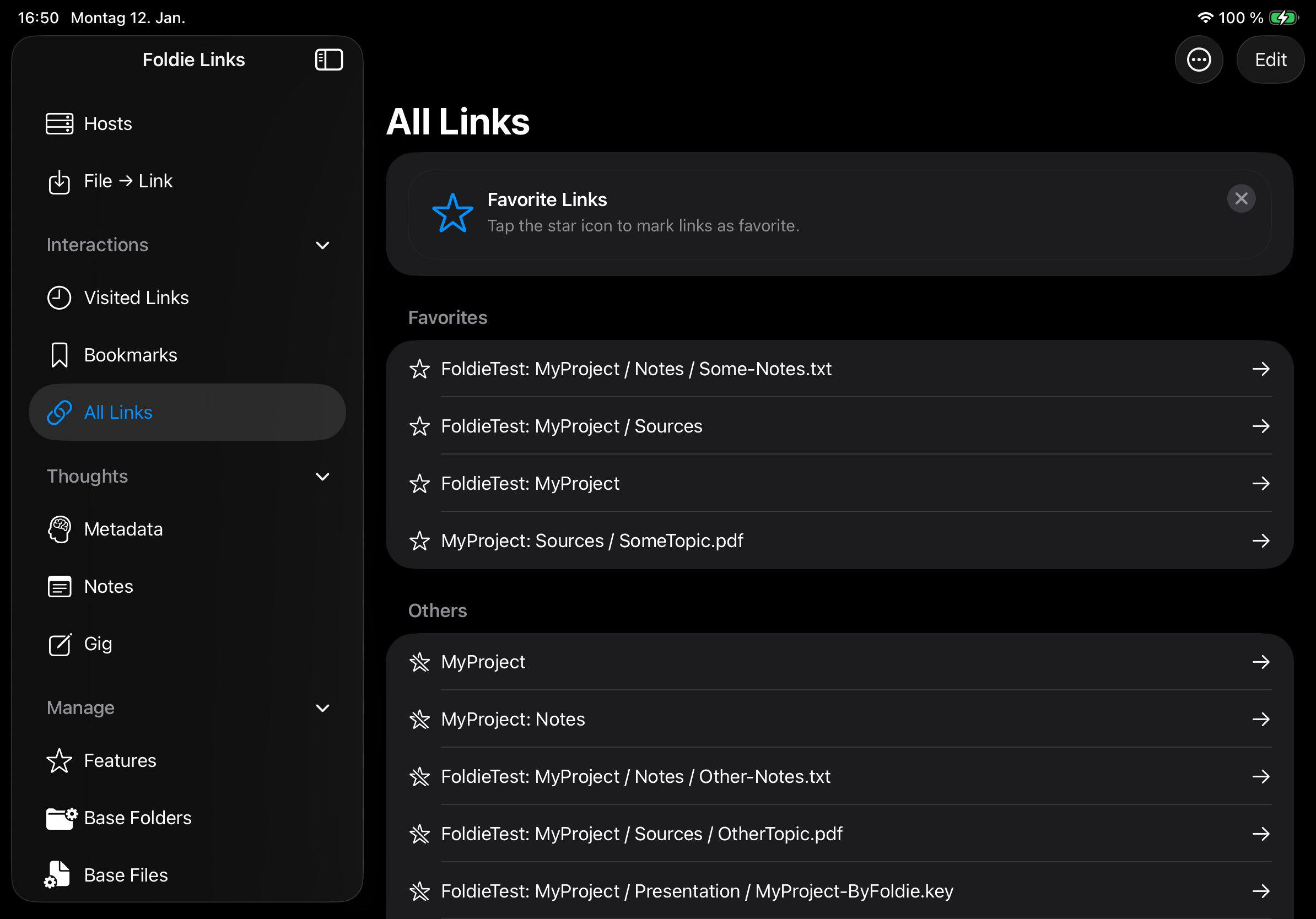
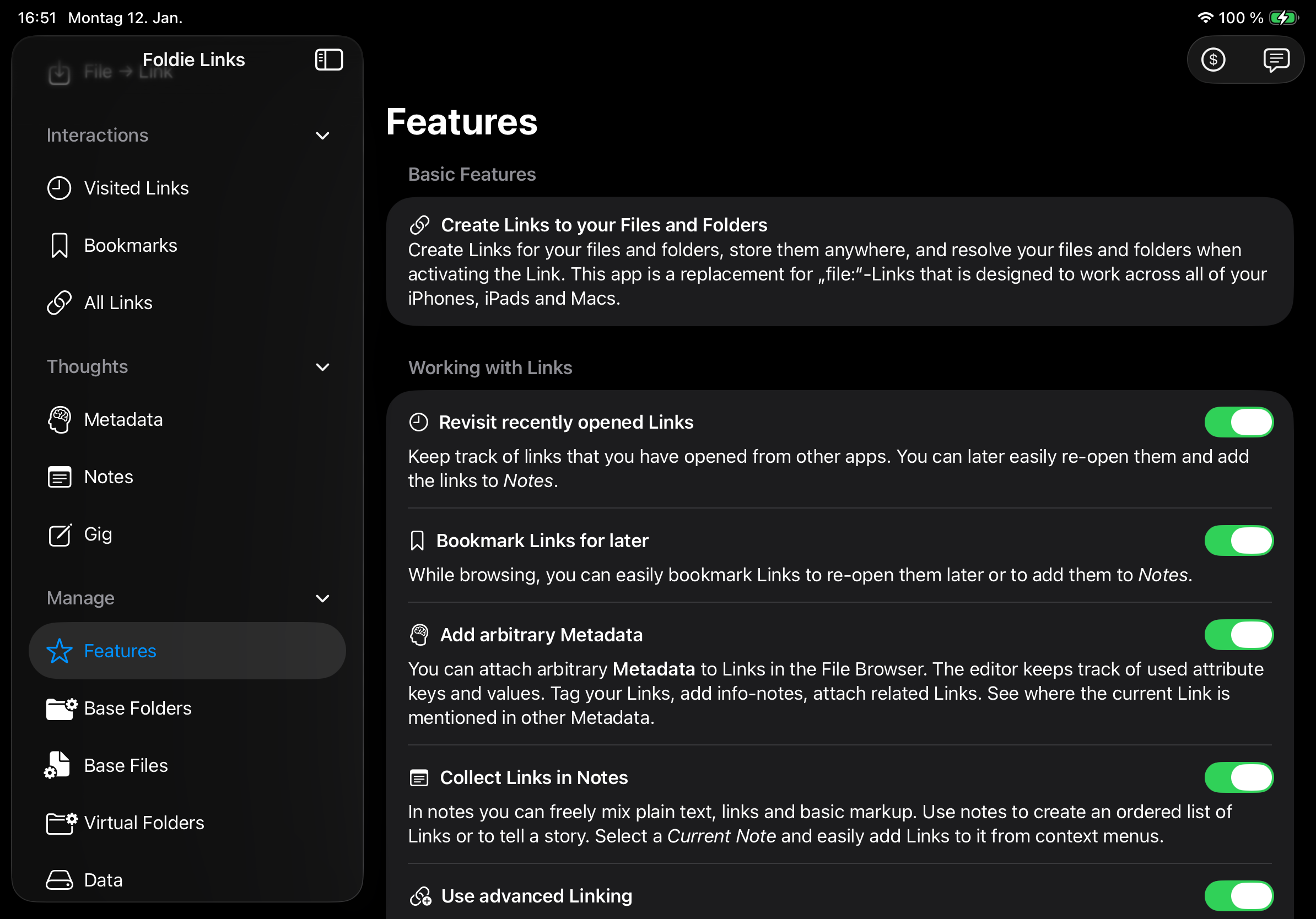
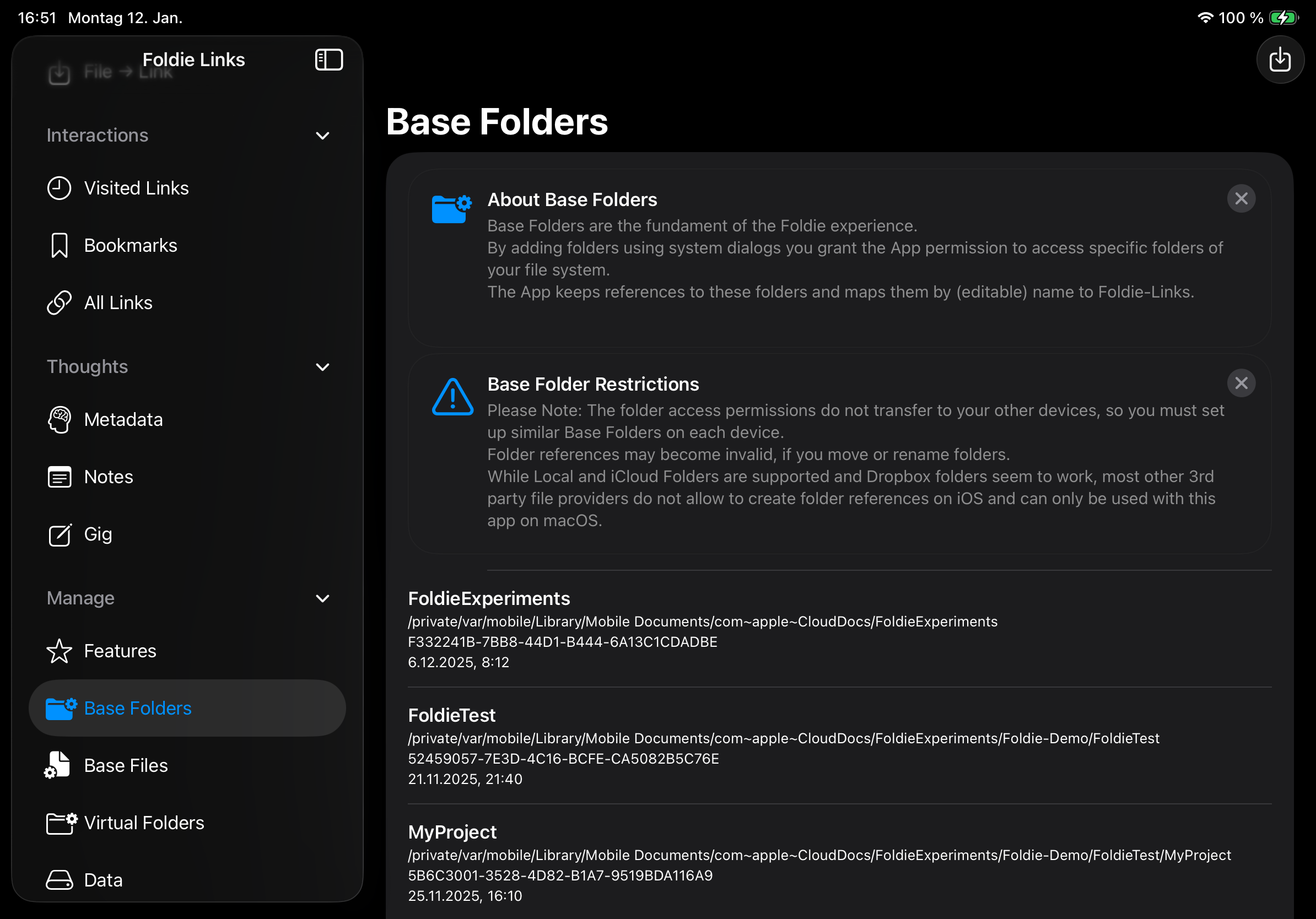
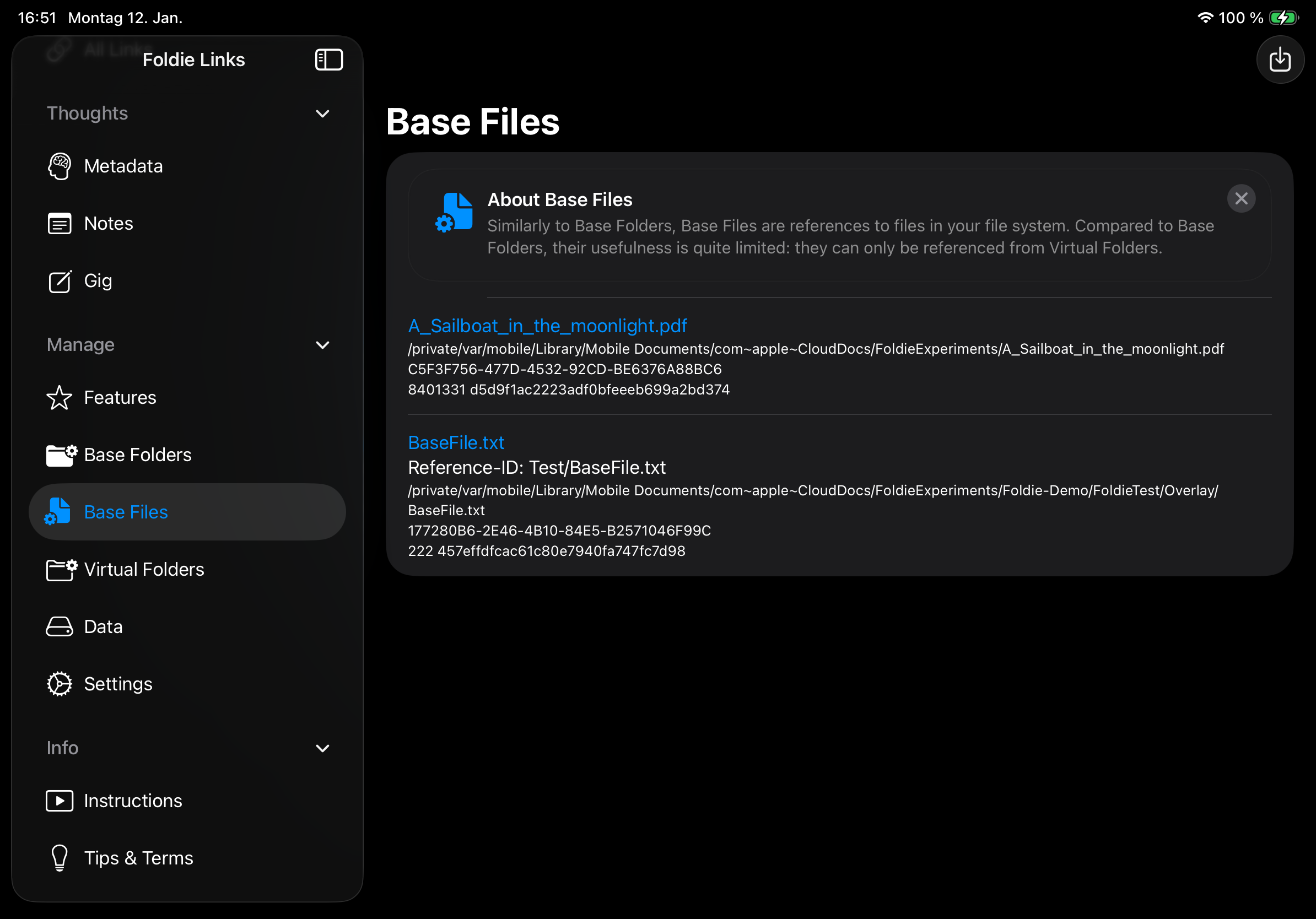
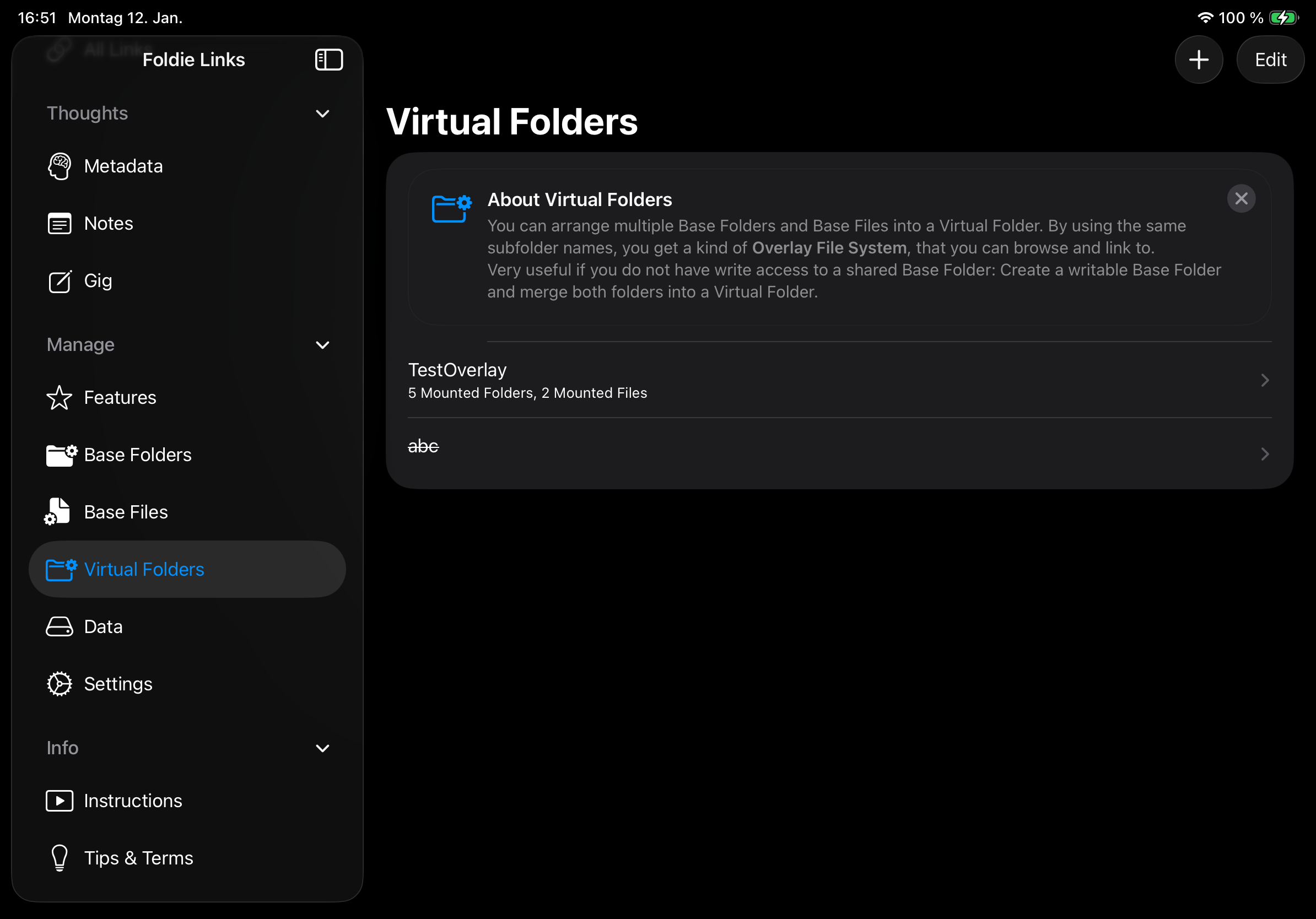
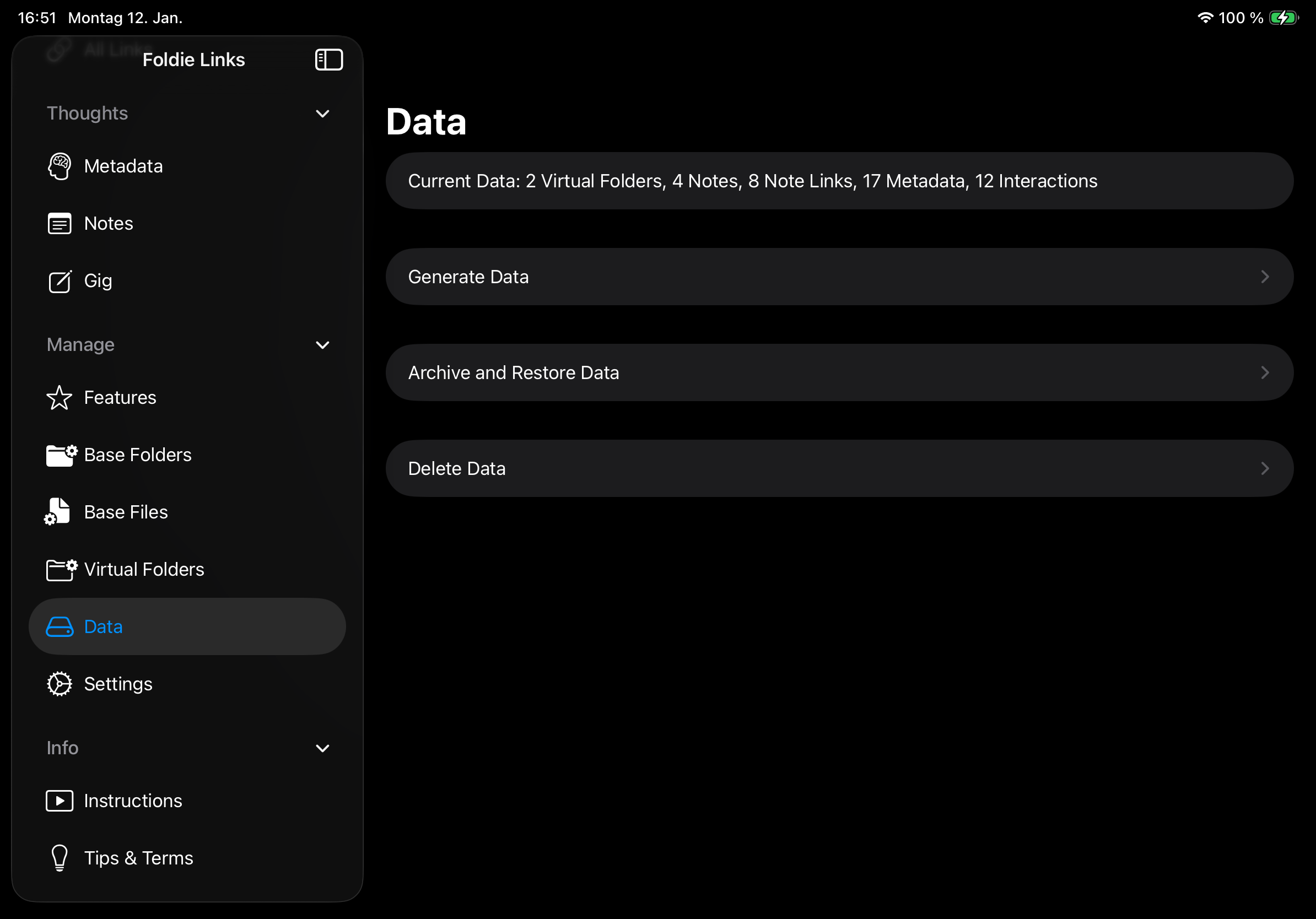
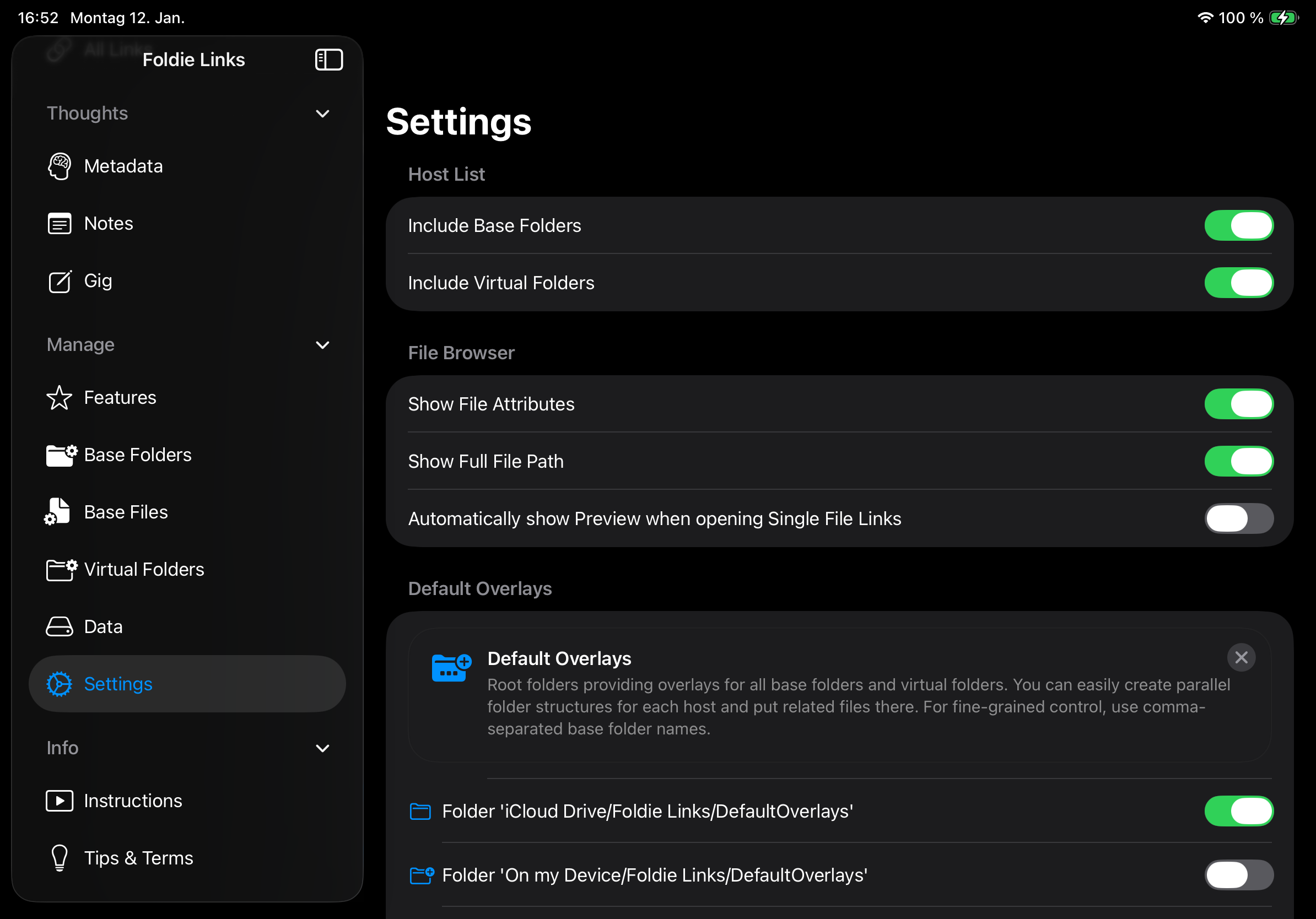
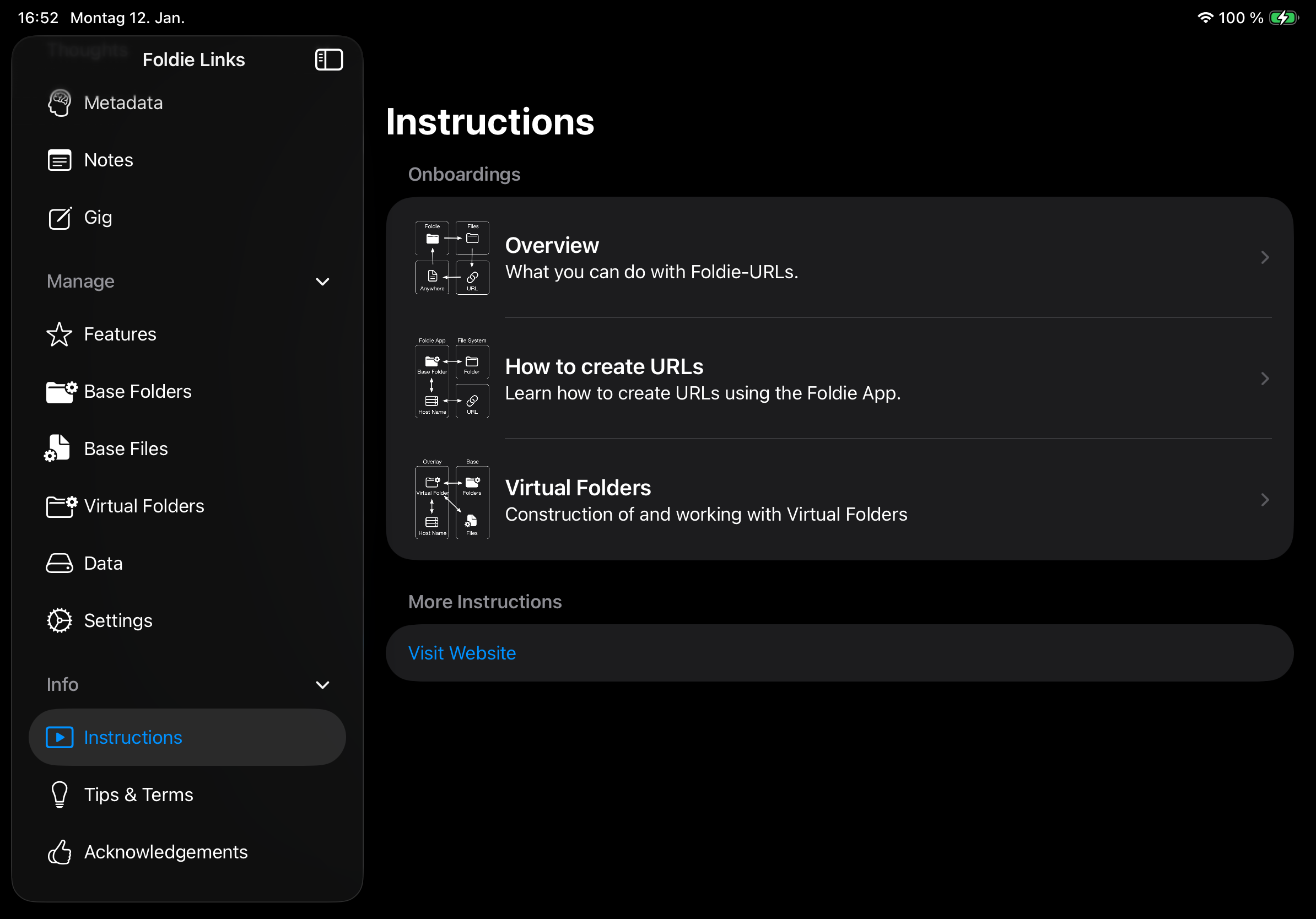
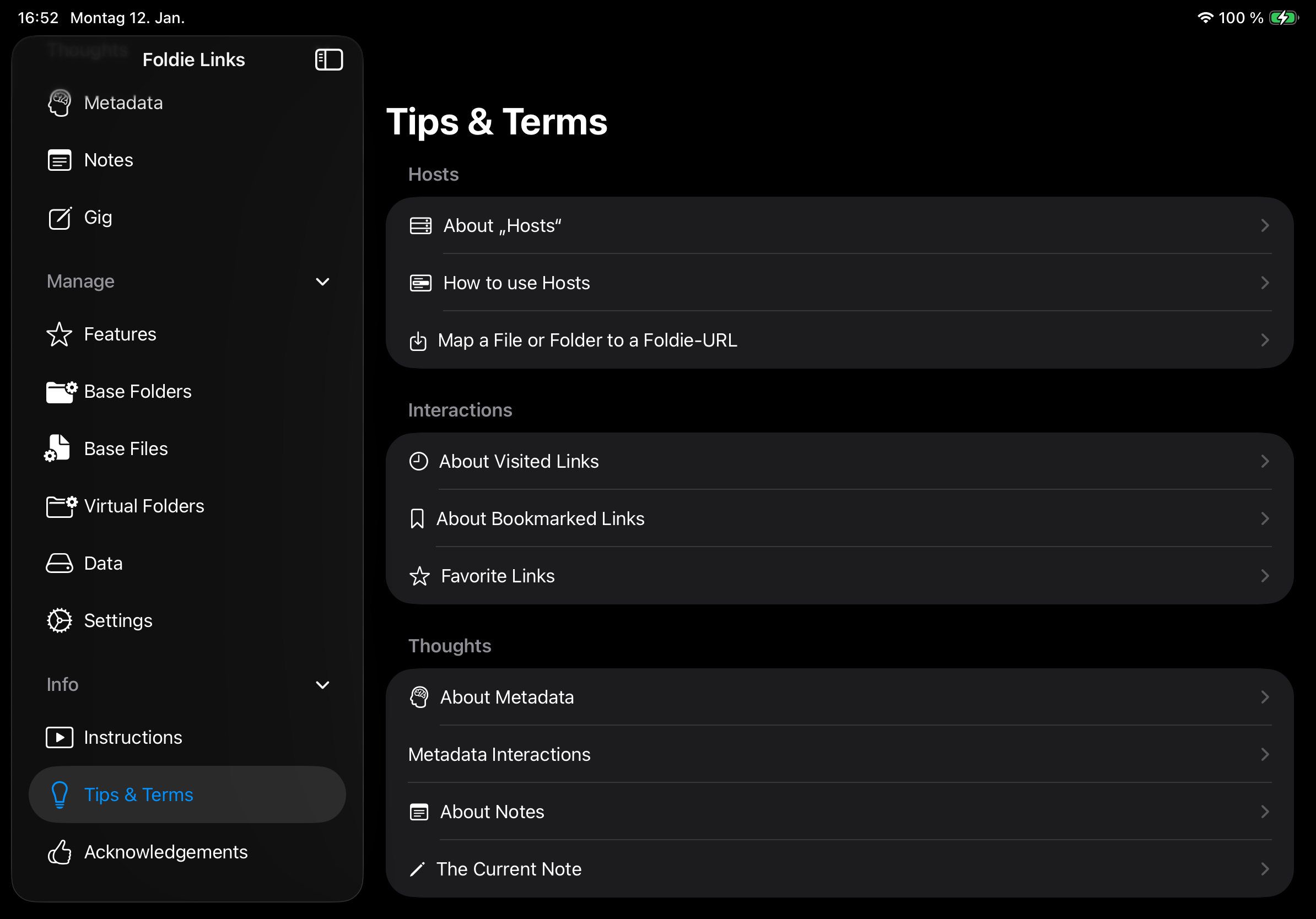
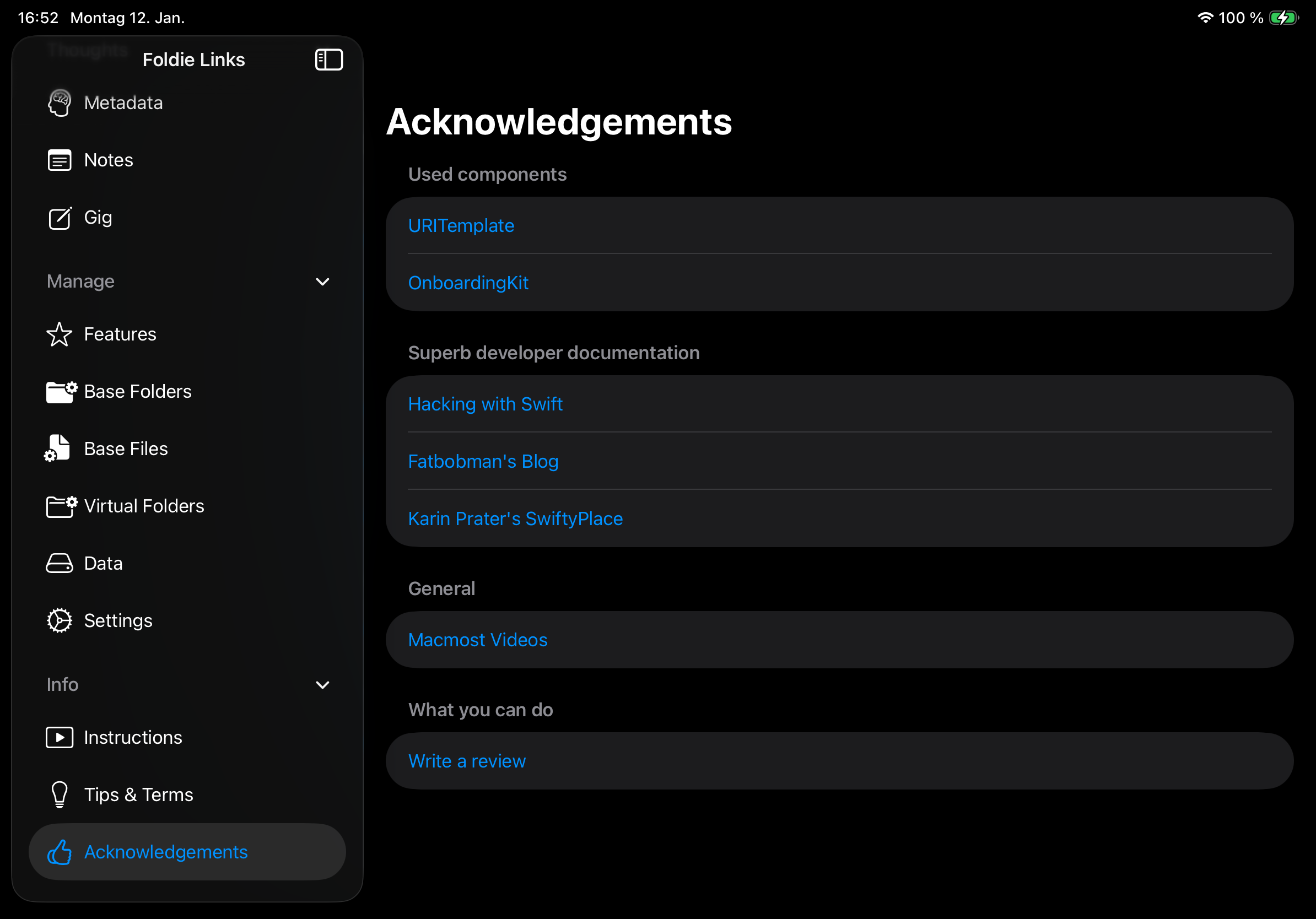
For iPad screenshots of the main screens, see here.
- Top
- Interactions
- Visisted Link: List Foldie-Links opened from other apps.
- Bookmarks: List your bookmarked links.
- All Links: List all visited and bookmarked links.
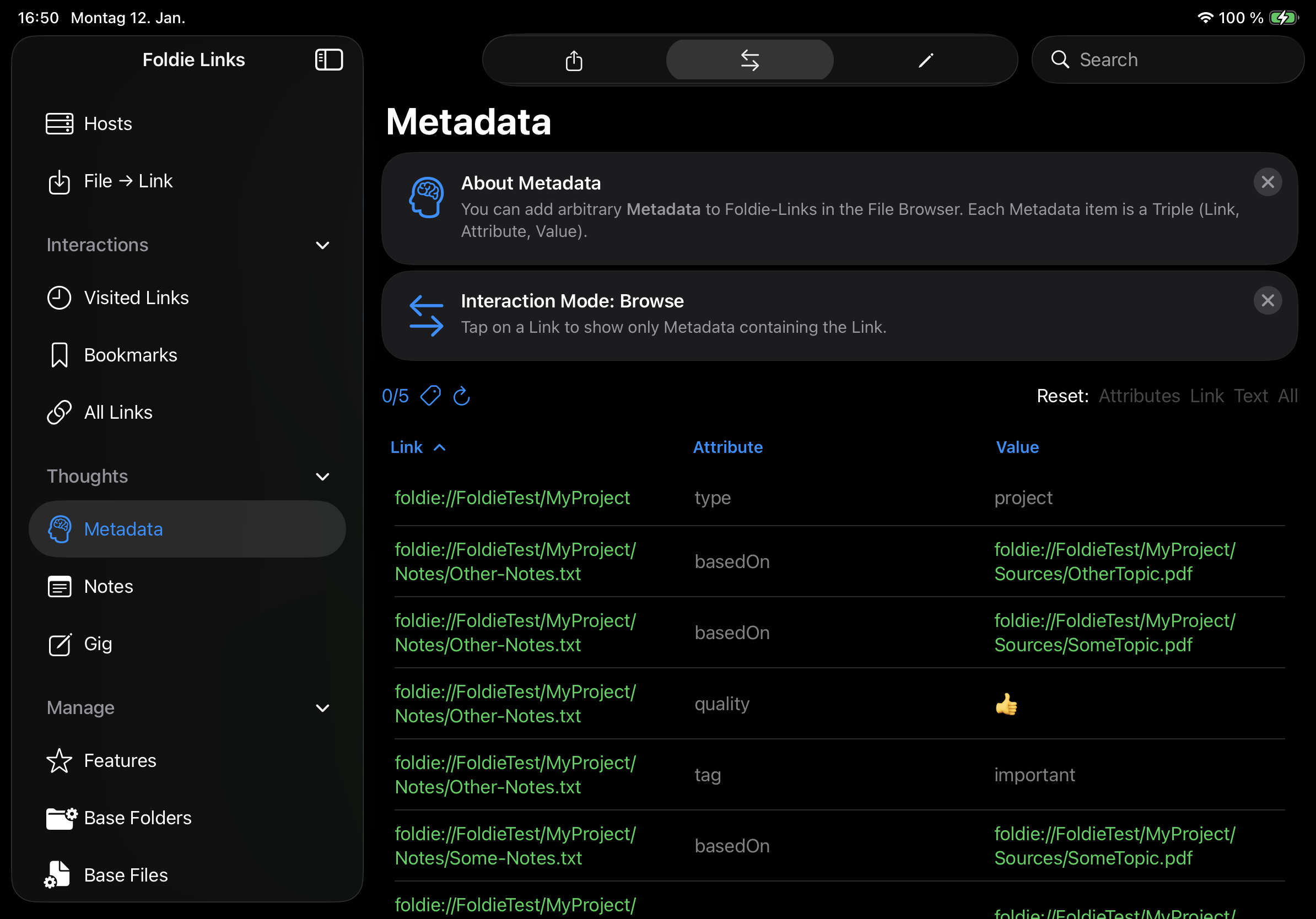
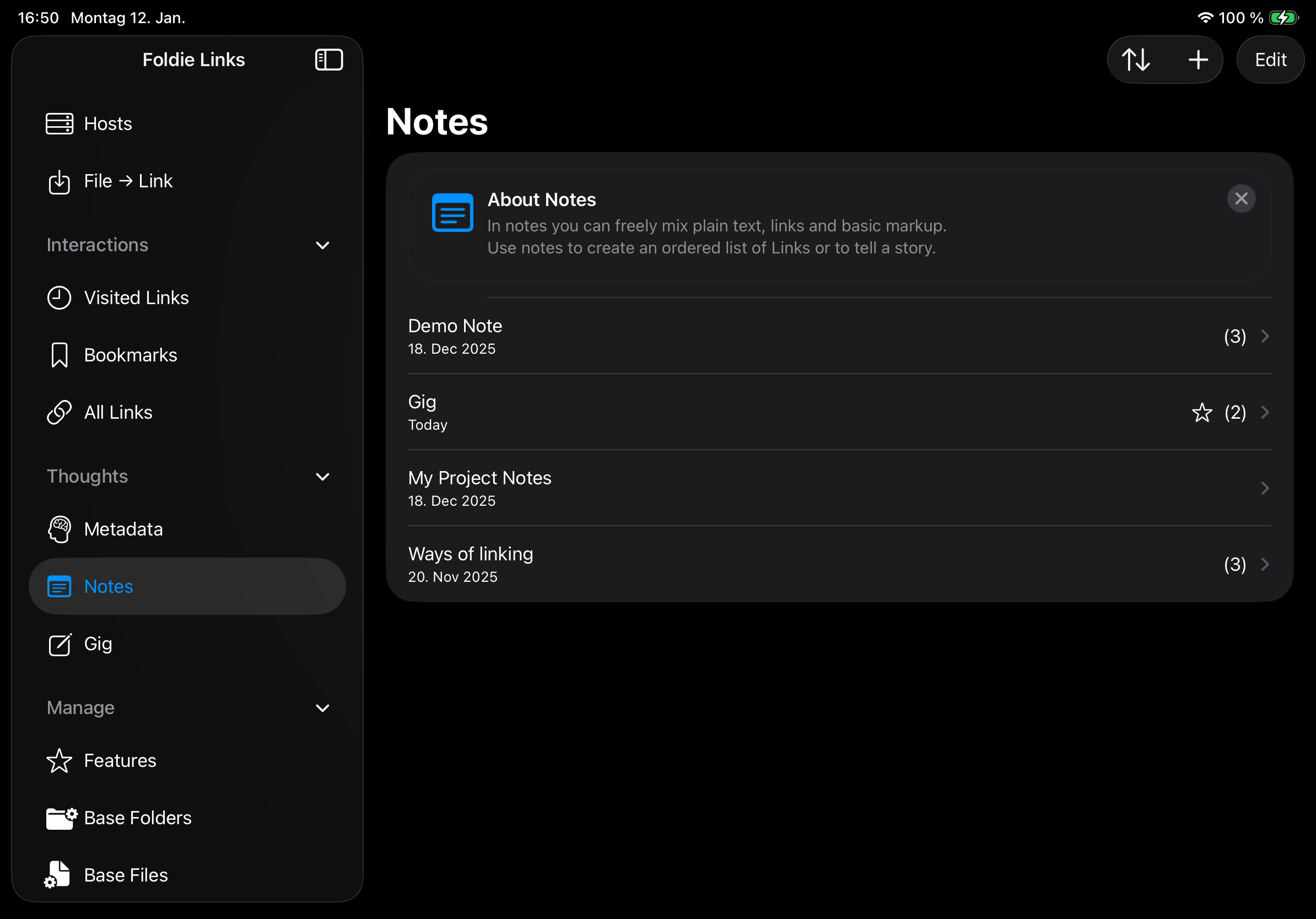
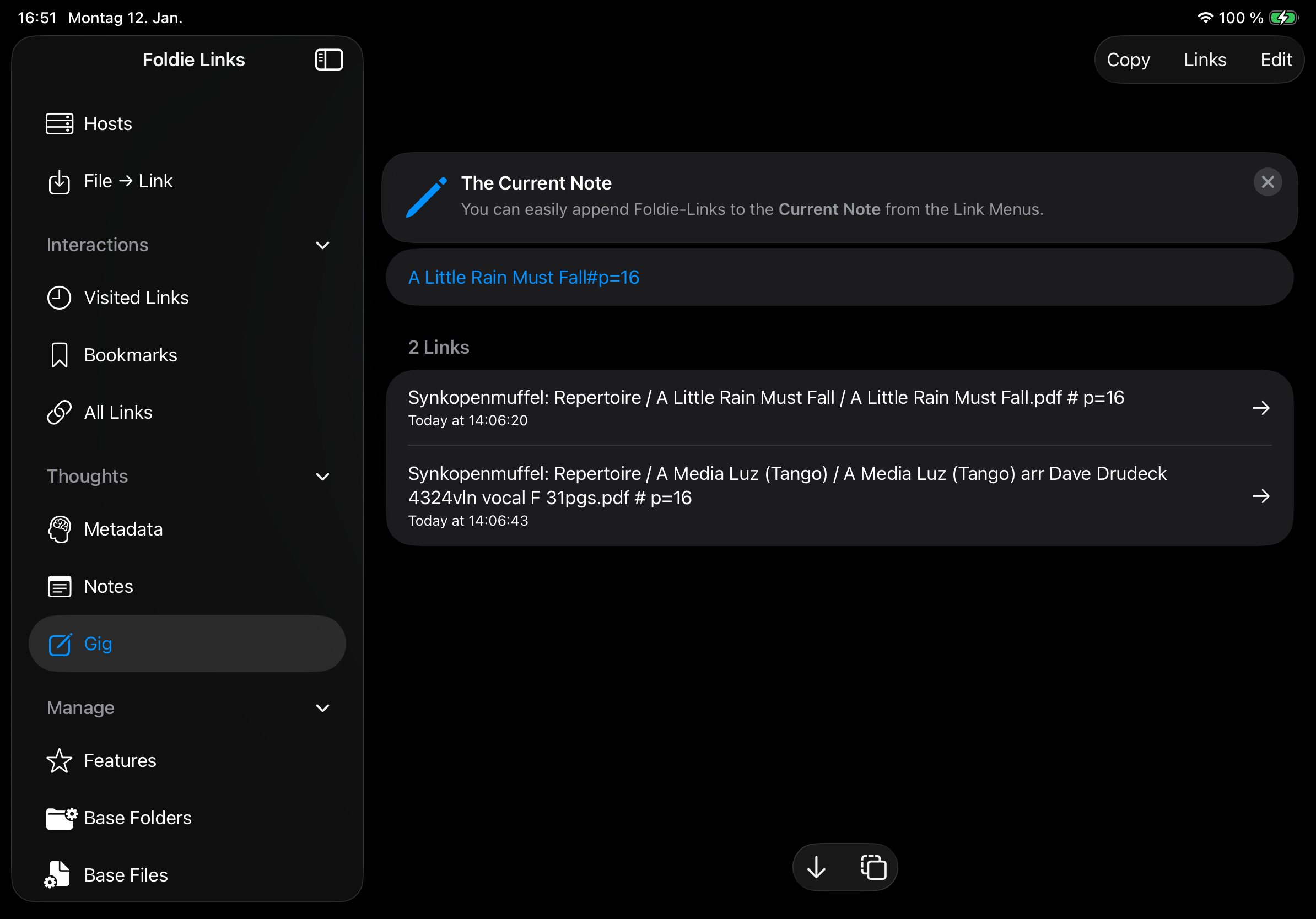
- Thoughts
- Metadata: List and browse Metadata.
- Notes: List and edit notes.
- Current Note: Edit the note, to which links are appended by default.
- Manage
- Features: Activate and buy pro features.
- Base Folders: Add and remove base folders.
- Base Files: Add and remove base files.
- Data: Get information about stored data and generate test data.
- Settings: Adjust options.
- Info
- Instructions: Get instructions.
- Tips & Terms: Reveal tips that you dismissed before.
- Acknowledgements: Write a review.
1.2 - Main Screens
Top
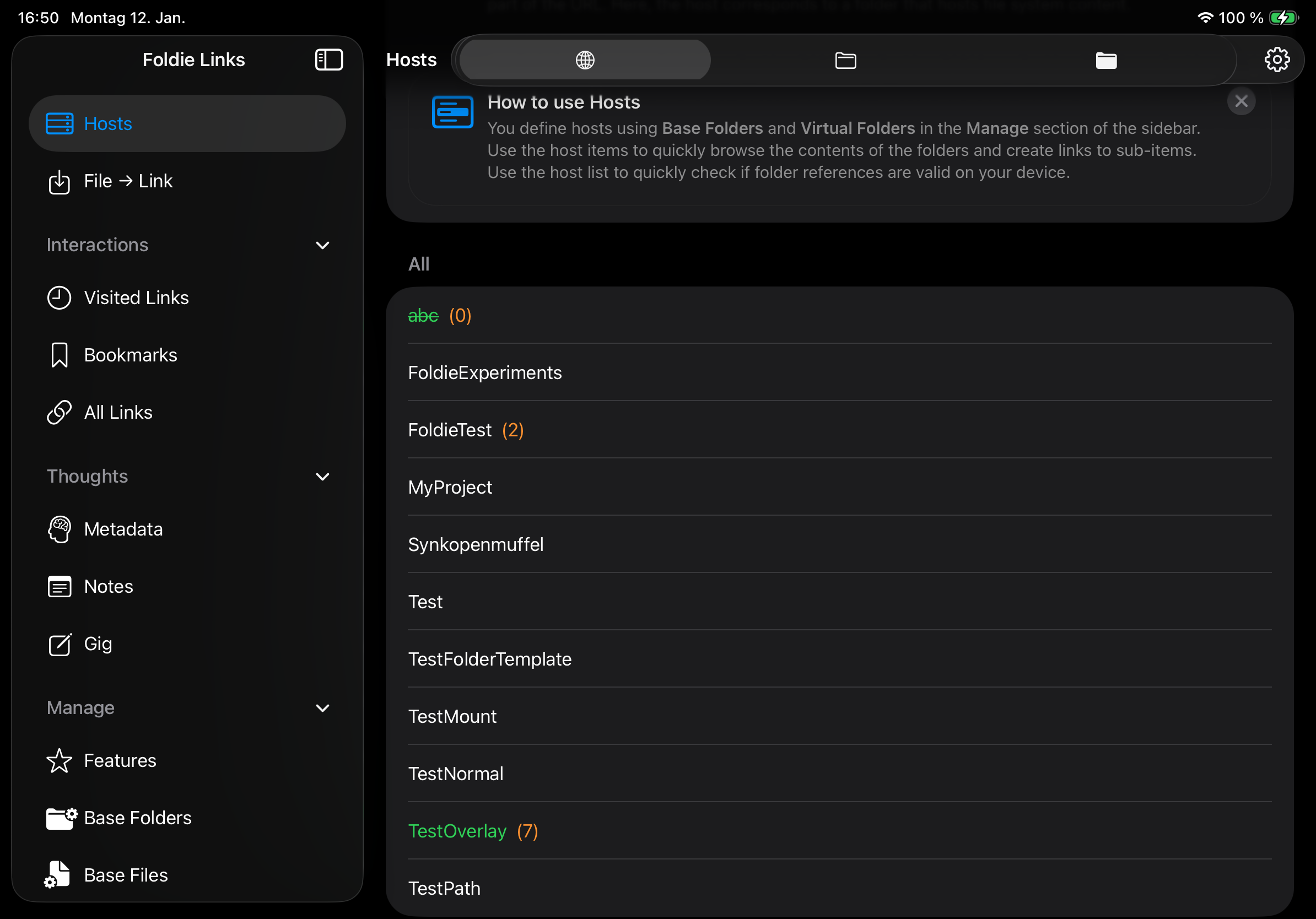
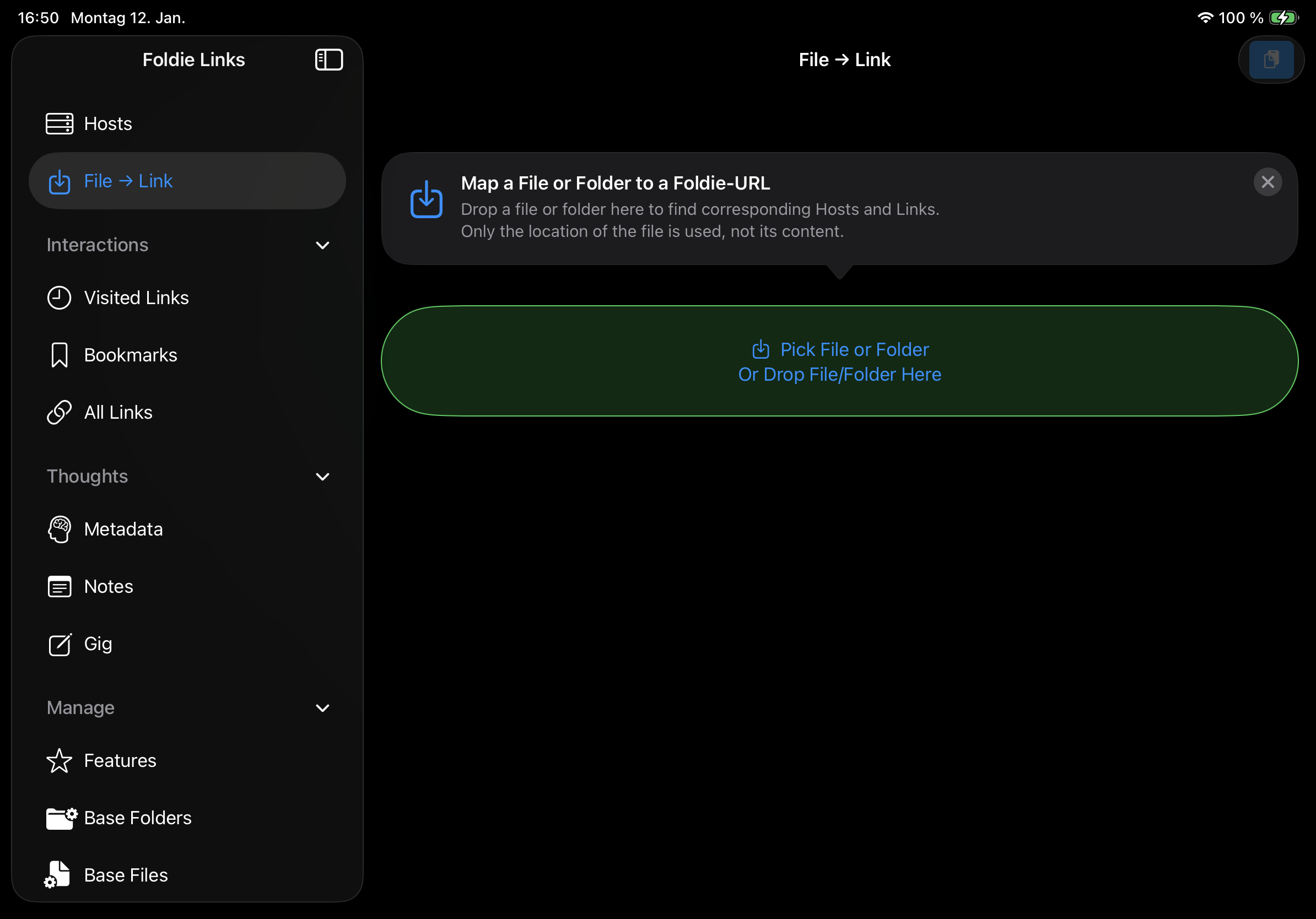
Interactions
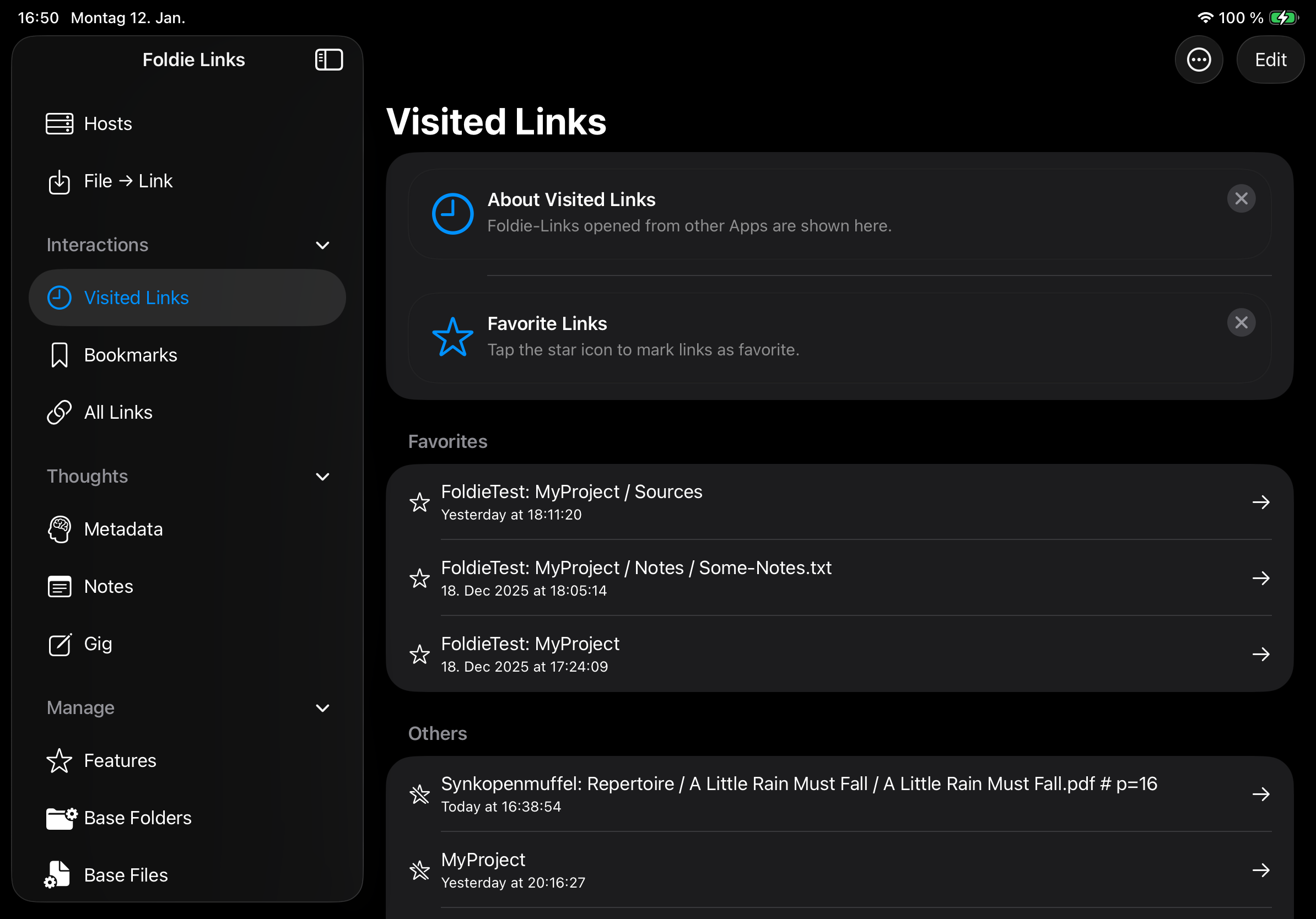
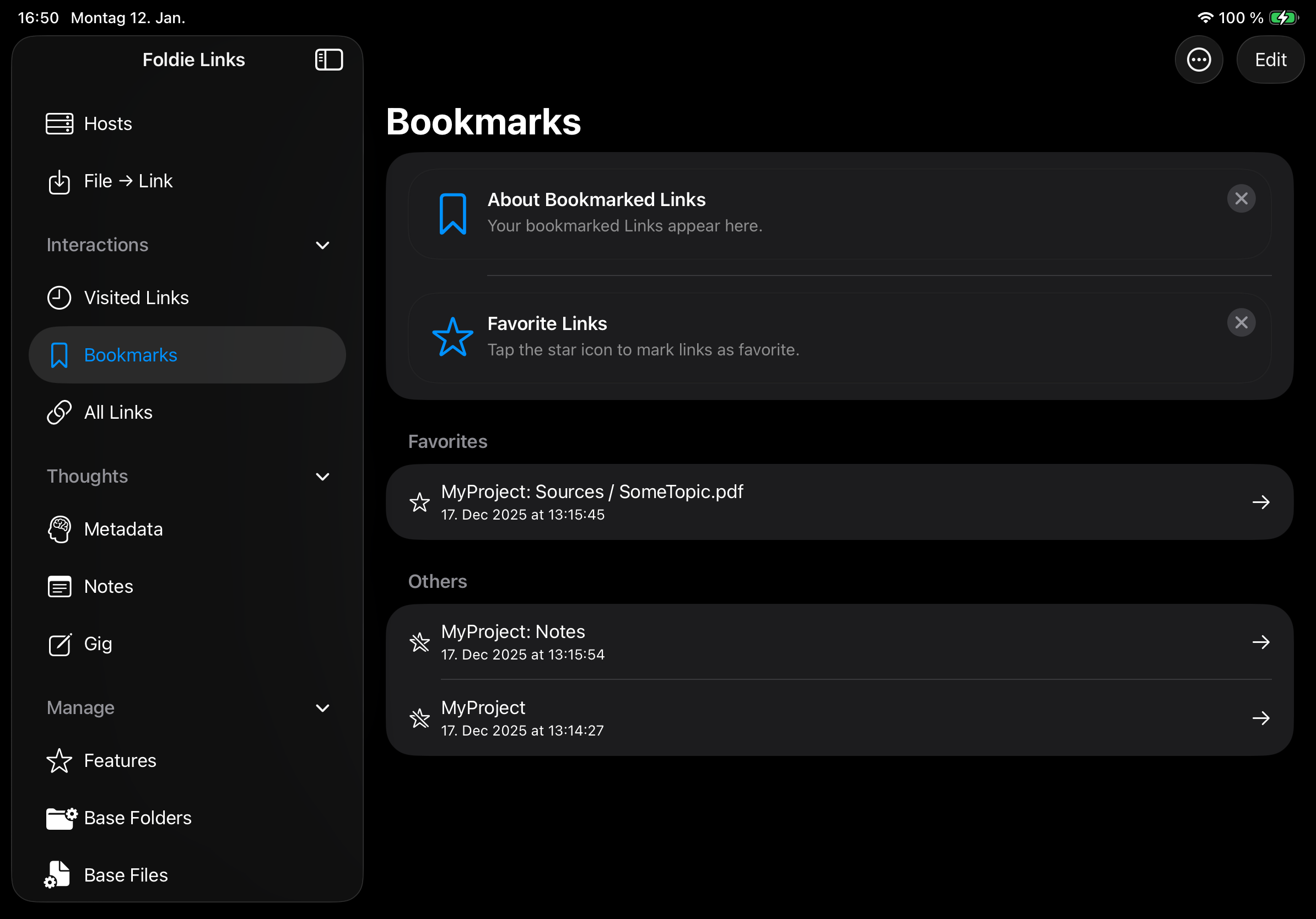
Thoughts
Manage
Info
2 - Use Cases
2.1 - Big Band
You play the trumpet in the big band “The Reluctant Syncopators”. Your band has PDFs of the scores stored on an online folder. Some PDFs contain all voices (Song.pdf), some are split up into the different voices (Song-trumpet-2.pdf).
Preparing a playlist for a gig
You took over the moderation of the gig, so you do not have much time between the songs. Therefore you prepare a playlist note:
- You create a new note for the gig and make it the current note.
- For each song in the gig list:
- You find the relevant PDF score file.
- You open it with the built-in PDF viewer.
- Within the score file you find the starting page of the notes for your voice (trumpet 2).
- You create a link from the current page and add it to the current note.
During the gig, you just tap the next link from the playlist note to get to the relevant page of the next song.
Adding playing instructions
Each score is a PDF that contains scores for each instrument. To instruct guest players, add an Info folder score-Info to each score, with a file per instrument group (e.g. trumpets.pages) that contains
- overall playing instructions, such as which mute to use,
- for each instrument voice (trumpet 1, trumpet 2, trumpet 3) the page number within the score file to look up the relevant notes quicker.
The trumpets may manage their own information and share it in a trumpet-internal overlay folder, so other instrument groups even do not see the annotations.